


Luckycapone Application for Mobile
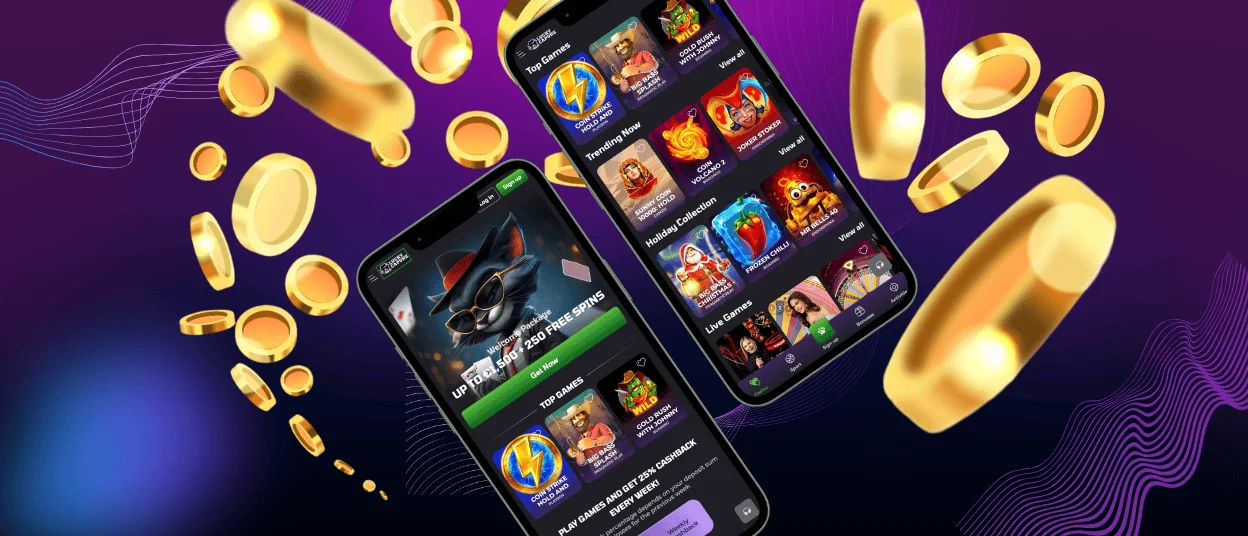
The Luckycapone app brings the full gaming experience right to your phone. You can get to all of the casino features through a simple interface that works on both Android and iOS devices. The app keeps all of the desktop version’s functions while making the controls and layouts easier to use for touchscreens.



Android App for Lucky Capone
Android users can get the full functionality of native apps by installing them as PWAs. The app works on Android 6.0 and newer versions, so it can be used on most devices made in the last seven years. You get push notifications for deals, use your fingerprint to log in quickly, and can access your game history and account settings.
If you have any questions regarding the installation process or any other issues, feel free to contact our support team via live chat or email.
How to Set Up the App
- Use Chrome or another browser to go to the Luckycapone website.
- Click the three-dot menu icon in the upper right corner.
- Choose “Add to home screen” from the list.
- Tap “Add” in the pop-up window to confirm.
- Now, when you click on the website shortcut, it opens in a separate browser window without the address bar, just like an app.
Advantages of the Luckycapone App
The mobile casino app makes gaming on a small screen easier without losing any features of Luckycapone casino. Slot games work best in vertical orientation, but table games like blackjack and roulette are better in landscape mode. Instead of using a mouse, you use your fingers to touch the screen, which makes things like placing bets or spinning reels easier.
Battery life stays good even when playing for a long time. The app uses hardware acceleration to render graphics, which takes less work for the processor than playing games in a web browser. You can minimize the app and come back without losing your progress or connection to live games.
Using fingerprint or face recognition to log in is quicker than typing in a password. The app remembers your choices for display settings and betting limits. Push notifications let you know about deposit bonuses and when withdrawals are confirmed, so you don’t have to check the website all the time.
| Aspect | Mobile App | Desktop Browser |
| Screen Orientation | Vertical and horizontal | Horizontal only |
| Login Method | Biometric authentication | Password entry |
| Notifications | Push alerts | Email only |
| Performance | Hardware accelerated | Browser dependent |
The app uses optimized asset loading to lower data usage. Game files and images download at a resolution that fits your screen instead of the best possible quality. This uses about 30% less bandwidth than mobile browsers, which try to load content in full resolution.
Download Luckycapone for PC
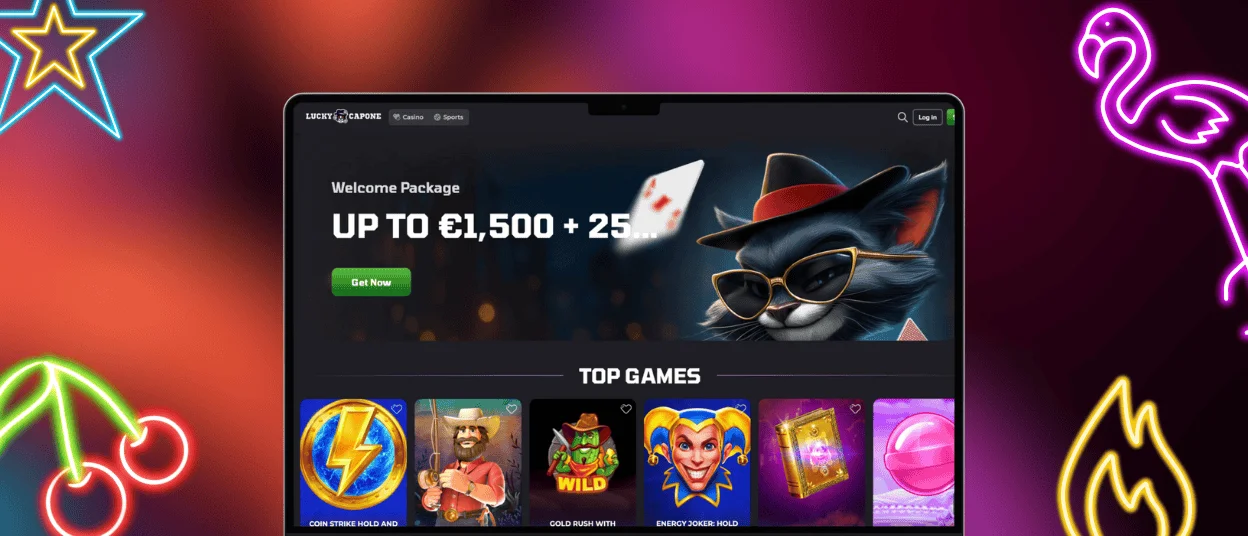
Desktop users can use Luckycapone through a Progressive Web Application that works like a native program.
- Using Chrome, Edge, or another Chromium-based browser, go to the official Luckycapone website.
- Click the install button in the address bar, which is usually on the right.
- The browser will ask you to confirm that you want to install it.
- The Luckycapone app will show up on your desktop or in your apps menu when it’s done installing.
The desktop PWA loads faster than a regular web browser because it keeps important files on your computer. You get a separate window with no browser toolbars, which makes for a cleaner workspace. Updates are done automatically in the background, so you don’t have to download anything yourself to make sure you’re using the latest version.
| Feature | Desktop PWA | Browser Access |
| Load Speed | Fast | Moderate |
| Interface | Dedicated window | Browser tab |
| Updates | Automatic | Manual refresh |
| Storage | Local cache | Session-based |
App for iPhones and iPads
iOS users can use Safari’s “Add to Home Screen” feature to create a progressive web app for Luckycapone. This method works on iPhones that have iOS 13 or later and all iPads from 2017 onward. You don’t need to have an App Store account or any extra permissions to install it, and it takes less than a minute.
Setting Up the iOS App
- Open Safari and go to the Luckycapone website.
- At the bottom of the screen, click the button that looks like a square with an upward arrow.
- Go to the options menu and choose “Add to Home Screen.”
- You can either type in a different name or leave the default name, “Luckycapone.”
- To confirm, click “Add” in the top right corner.
The Lucky Capone icon is next to your other apps on your home screen. When you tap it, the site opens in standalone mode, which hides the address bar and navigation buttons in Safari. This gives users an app-like experience while keeping all the features of a website. When you open the app while connected to the internet, iOS automatically updates the cached files.
For people using an iPad, the landscape layout shows games in all their glory with very few interface elements. Portrait mode is good for looking at game categories and changing account settings. Split-screen multitasking lets you do multiple things at once. You can keep Luckycapone open while checking your emails or using other apps.
Frequently Asked Questions
Does Lucky Capone have offline modes or requires internet access?
For all game activities and transactions with real money, the app needs to be connected to the internet. When you aren’t connected to the internet, you can only view your account history, check verification process, and go over game rules that are already cached. You can use either cellular data or WiFi, but for the best gaming experience, make sure your connection is at least 3 Mbps. Live dealer games need faster connections, ideally 5 Mbps or more, to stop video buffering.
Can I use my account on both mobile and desktop?
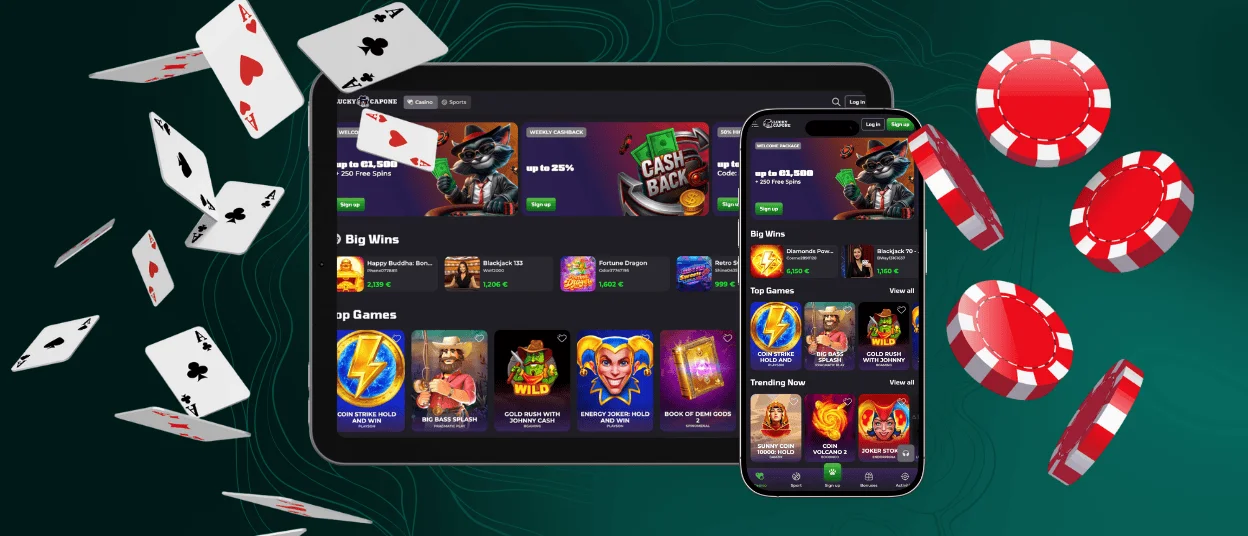
You can use your Lucky Capone account on any device without having to sign up again. You can log in on your phone, computer, or tablet using the same username and password. No matter what device you use, your account balance, bonus progress, and game history will be synced automatically. You can start playing a game on your phone and then pick up right where you left off on your desktop computer later, without any changes to your account.
Can you play all games on the mobile app, or just some of them?
The mobile app lets you see all the games that are on the desktop version. This includes games like online slots, tables, live dealers, and specialty titles. Some older games may look different on mobile screens because of changes in layout, but they still work the same way. New games come out on mobile and desktop at the same time, so both platforms are equal.


